Running Chrome with no screen (“headless”) on AWS Lambda, Amazon’s service for running a function on demand with no server to manage, is a solved problem. Running Chrome with a screen (“headful”), with real extensions loaded and real pixels being drawn, is not, because Chrome refuses to start without a display to draw on and a Lambda function does not have one. chrome-lambda is a reference container image that gives it a fake one.
This post covers when a browser with a screen is the only option, the three pieces the image is built from, and the order in which the startup script creates the virtual display and hands it to Chrome.
When a browser without a screen is not enough
Most Chrome-on-Lambda jobs are served by chromium --headless or the newer --headless=new. The cases that are not:
- Browser extensions that will not load in headless mode: ad-blockers, corporate sign-in extensions, and newer (Manifest V3) extensions that wait for browser-tab events before doing anything.
- Websites that detect a headless browser and quietly serve it a stripped-down page.
- Work that needs real pixels: screenshots of the page as actually rendered, PDF output with web fonts laid out correctly, and image comparisons that catch visual regressions.
Each of those needs a real Chrome, which means a real display, inside the 10 GB container image Lambda allows.
The recipe
The image is three familiar pieces:
- Amazon’s base container image for Lambda, which supplies the runtime plumbing.
- Xvfb, the “X virtual framebuffer”: a display server that draws into memory instead of a monitor. It gives Chrome a display to open, numbered
:99, with no graphics card behind it. - Chromium, driven by Puppeteer (a library that controls Chrome over its DevTools debugging protocol), with the extension unpacked into the container’s filesystem so it is present every time a fresh container starts.
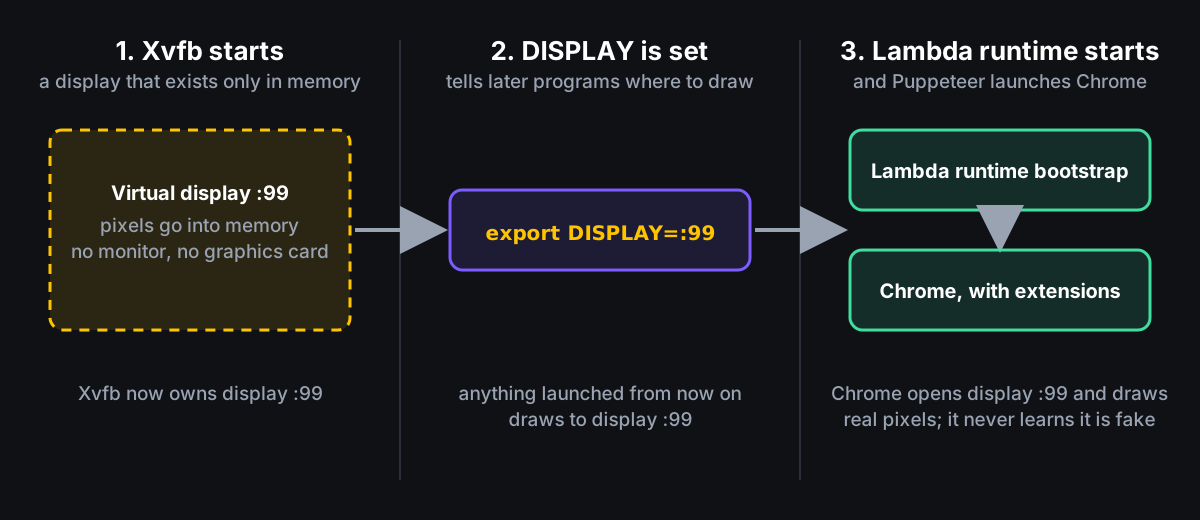
The shell script that runs when the container starts does three things in order: it starts Xvfb, sets the DISPLAY environment variable to :99 so anything launched afterwards draws there, and then hands control to Lambda’s runtime bootstrap, which is what eventually launches Chrome. Chrome never learns the display is fake.
Reading material
The image stands on three earlier writeups, all linked from the README:
- Running headful Chrome with extensions in a Lambda container image
- Running Chrome in a Docker container
- Run Xvfb on AWS Lambda container
When to reach for it
If a site serves a different page to headless browsers, or you need a privacy or sign-in extension preloaded, the repo is a starting point. For everything else, --headless=new is lighter and cheaper, and you should use it.